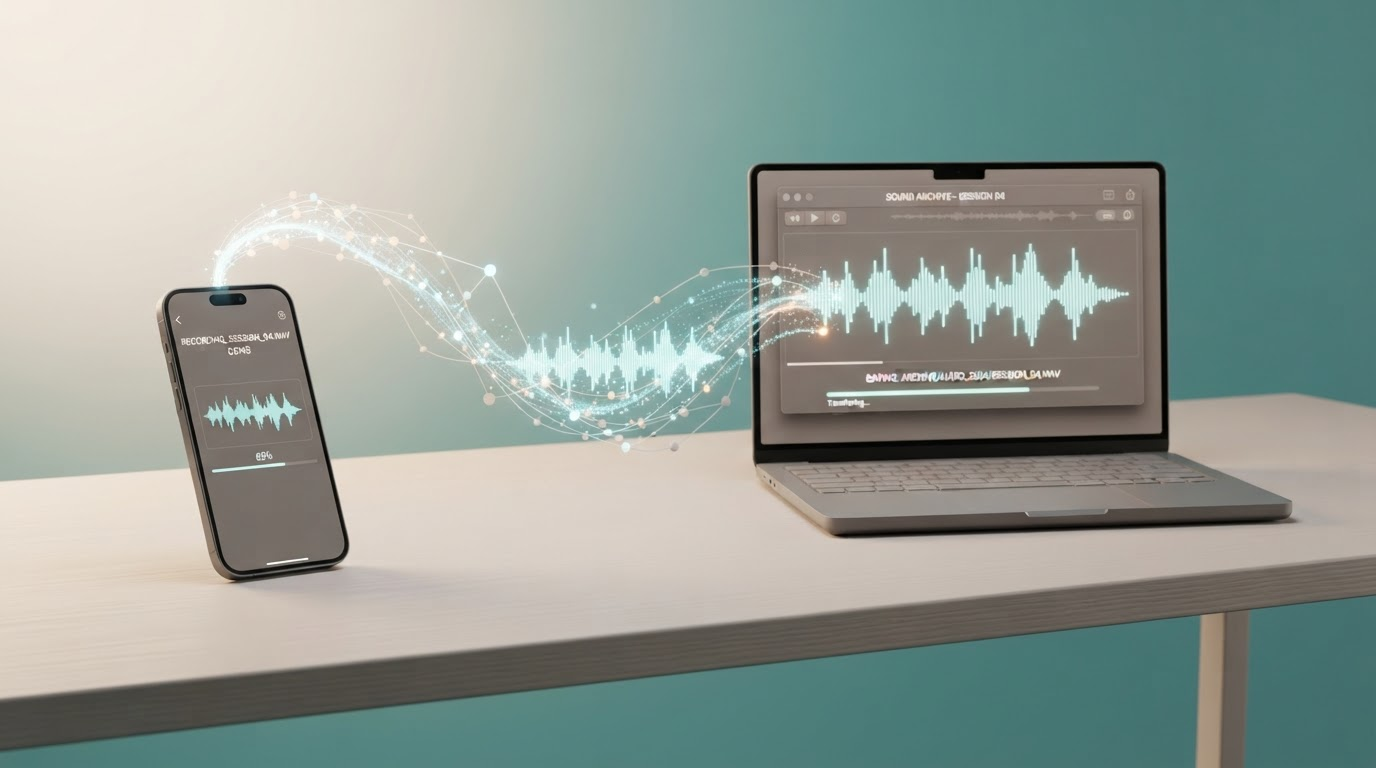

How to Download Voicemails From iPhone to Computer
Quick Answer
How to download voicemails from iPhone to computer takes three taps. In Phone app, share voicemail to Files. AirDrop to Mac or email to PC. Transfers your digital files instantly, keeping master quality intact. No apps required. Perfect for caregivers preserving voices forever.
Picture this: late afternoon light filters through the kitchen window. You clutch your iPhone, heart pounding, and hit play. Dad's voice crackles to life, sharing one last joke before his passing. As a family caregiver, that sound is irreplaceable. Yet fear gnaws at you. What if your phone dies? What if carriers wipe it? Learning how to download voicemails from iPhone to computer today eases that dread. These are digital files you already have saved. Act now to save voicemails before Verizon deletes them after 30 days.
Voicemails capture love's raw echoes: a spouse's encouragement during hospital nights, a child's giggle amid chaos. Caregivers know the weight. Phones fail. Storage fills. Carriers purge. But relief lies in simple transfers. Your iPhone holds these treasures as ready digital files. No scanning old tapes. Just pure preservation.
Why Family Caregivers Need Voicemail Preservation Now
You juggle doctor's calls, meal prep, endless worry. Amid it, a voicemail becomes anchor. Mom's gentle reminder to rest. Brother's update from afar. These snippets preserve what love left behind. Digital only, they sit waiting in your Phone app. Download them to computer for backups across drives, clouds, externals. Build redundancy. Sleep easier knowing voices endure.
Carriers like Verizon auto-delete after weeks. Phones glitch. Batteries fade. One caregiver shared how her husband's final words vanished in a water spill. Don't wait. These methods work on iOS 12 and up, any modern computer. Start with files you already have.
Three Simple Taps: Download Voicemails from iPhone to Computer
No downloads. No fees. Built-in tools handle it. Each method saves your digital voicemail as a shareable file. Aim for master quality: iPhone stores them in crisp M4A, your WAV-equivalent for archives.
Method 1: Save to Files App (Works Everywhere)
- Open Phone app. Tap Voicemail tab.
- Find the message. Tap it once.
- Tap share icon (box up arrow). Choose Save to Files.
- Pick folder. Tap Save. Three taps done.
Now in Files app, long-press the file. Share via AirDrop, email, or USB to computer. Instant transfer.
Method 2: AirDrop to Mac (Fastest for Apple Users)
- Phone app > Voicemail > Tap message.
- Share icon > AirDrop.
- Select your Mac. Accept on computer.
File lands in Downloads. Zero cables. Magic for MacBook caregivers.
Method 3: Email to PC or Mac (Universal)
- Same start: Voicemail > Share.
- Choose Mail. Attach to self or safe email.
- Send. Download attachment on computer.
Opens on Windows, Linux, anything. Forward to cloud for extras.
Keep Your Master WAV Files for Long-Term Safety
Your downloaded M4A is the master. Identical to iPhone original. For pro archives, import to iTunes or Audacity. Export as uncompressed WAV. Store multiples: external drive, Google Drive, family-shared folder. Label clearly: Date, Name, Note. Test playback yearly. These steps lock in clarity, blocking future loss.
What we handle? Digital files only you already have saved.
- Voicemails straight from iPhone Phone app.
- Other saved digital audio clips on device.
- Ready-to-transfer files in Files app.
Frequently Asked Questions
How do I download voicemails from iPhone to computer?
Use the Phone app's share feature to save voicemails to Files, then AirDrop or email them. Three taps preserve your digital files in original quality.
Does this preserve the original audio quality?
Yes. These methods transfer the master digital file, typically M4A, without compression loss. Store as your master WAV-equivalent for archives.
What format are iPhone voicemails saved in?
iPhone voicemails save as high-quality M4A files. Treat them as master files; convert to WAV if needed for pro archives using free tools like iTunes.
What don't you work with at Andrea B Denney Studios?
We handle digital files only you already have saved. No analog to digital transfers, no WhatsApp voice notes, no Alexa recordings, no dead phone data lab recovery. Focus on your ready digital voicemails.
Preserving what love left behind starts with one download. Those voices wait for you. Transfer today, and let them echo through generations.
Ready for more? Learn to save voicemails before Verizon deletes them permanently. Your legacy deserves it.
By Andrea B. Denney | Category: Legacy Preservation